---
id: "brand/settings"
type: "doc"
url: "https://affitor.com/docs/brand/settings"
---
# Manage program settings and your API key
> Edit your program's terms after launch and find, copy, or regenerate the per-program API key that authenticates your tracking integration.
Everything you configured in the [setup wizard](/docs/brand/quickstart/setup-program) stays editable after launch, and the same Settings page holds the API key that every server-side [tracking call](/docs/api-reference/overview) authenticates with. This guide shows where each setting lives, how to change terms safely, and how to rotate the key with the shortest possible gap in tracking.
## What lives in Settings
Open your brand workspace and select **Settings** in the left menu. The page is organized as a checklist of sections:
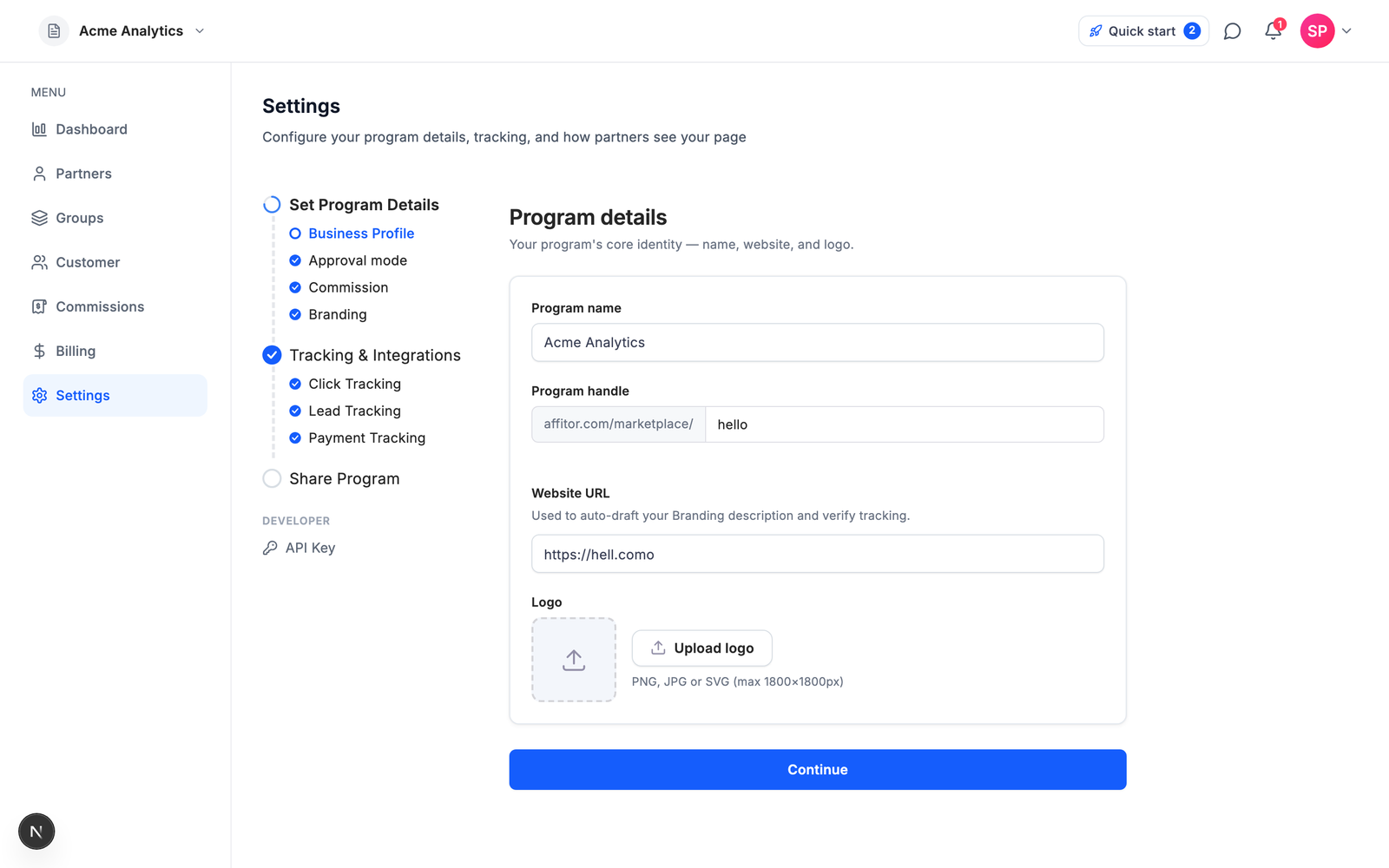
| Section | What you edit there |
|---------|--------------------|
| **Business Profile** | Program name, marketplace handle, website URL, logo |
| **Approval mode** | How partner applications are handled — manual review or auto-accept |
| **Commission** | Default commission type, rate, and hold period |
| **Branding** | How your program page looks to partners in the marketplace |
| **Tracking & Integrations** | Status of click, lead (signup), and payment tracking |
| **Share Program** | A shareable link for recruiting partners |
| **API Key** (under **Developer**) | The per-program secret key for server-side tracking calls |
## Step 1: Edit program terms after launch
Programs evolve — rates get adjusted, branding gets refreshed, approval policies tighten or loosen. None of this requires recreating the program.
1. Select **Settings** in the left menu of your brand workspace.
2. Choose the section you want to change: **Commission** for the default rate and hold period, **Approval mode** to switch between manual review and auto-accept, **Business Profile** for the program name, website, and logo, or **Branding** for your marketplace page.
3. Make the change and save the section.
:::tip
The **Commission** section sets your program-wide default. To pay different rates to different sets of partners, [organize partners into groups](/docs/brand/groups) — each group carries its own commission policy.
:::
## Step 2: Find your API key
Every server-side call to the tracking API — sales, refunds, and server-mode leads — authenticates with a Bearer token that is unique to your program. Integrations, SDKs, the CLI's tracking setup, and AI agents all use this same key. CLI commands that create or list programs act as your account instead, and authenticate with your CLI login.
1. Select **Settings** in the left menu.
2. Under **Developer**, select **API Key**.
The dashboard displays the key masked, and no read returns the full value. It is revealed exactly once — in the response to an owner's **Generate** or **Regenerate** action on the **API Key** tab. If you no longer have the current key stored anywhere, you can't recover it from the dashboard; regenerate it instead (Step 3).
Store the key as a server-side environment variable:
```bash
# .env — server-side only. Never ship this key to the browser.
AFFITOR_API_KEY=YOUR_PROGRAM_API_KEY
```
:::note
The **API Key** section also gives you a one-line instruction for an AI coding agent. It points the agent at [skill.md](https://affitor.com/docs/skill.md) with your program ID and key variable, so the agent can install tracking for you — see [Agent Integration](/docs/api-reference/agent-integration).
:::
## Step 3: Regenerate the key
Rotate the key if it may have leaked, if it was committed to a repository, or as routine hygiene when a team member with key access leaves.
Only a **workspace owner** can regenerate a program key. A member who tries is refused, so ask an owner to run it and to hand you the new value through your secret manager.
:::caution
The two keys never overlap. Regenerating replaces the key in place, and you receive the new value only in the regenerate response, so you cannot deploy it in advance. Between the regenerate and the redeploy, every integration still sending the old key gets `401` responses. Copy the new value before you close the reveal — it is shown one time only.
:::
1. Line up every place `AFFITOR_API_KEY` is stored — deployment environment, secret manager, CI — so you can update them straight away.
2. In **Settings** → **API Key**, regenerate the key. The old key stops working at that moment.
3. Copy the new key from the one-time reveal, update those places, and redeploy.
## Verify it worked
Send a test-mode sale with the new key. It authenticates exactly like a real sale but creates no commission and no platform fee.
Request — `POST /api/v1/track/sale`:
```bash
curl -X POST https://api.affitor.com/api/v1/track/sale \
-H "Authorization: Bearer YOUR_PROGRAM_API_KEY" \
-H "Content-Type: application/json" \
-d '{
"additional_data": { "test_mode": true },
"amount_cents": 9999,
"currency": "USD",
"sale_type": "payment"
}'
```
Expected response:
```json
{
"success": true,
"message": "Test sale event tracked successfully",
"data": {
"eventId": 789,
"programId": 1,
"test_mode": true
}
}
```
## Next steps
Base URL, auth modes, and every tracking endpoint your key unlocks.
Put the key to work: get clicks, signups, and sales tracking live end to end.
Hand the one-line instruction to an AI coding agent and let it wire up tracking for you.